Hex Planet System
Documentation
About
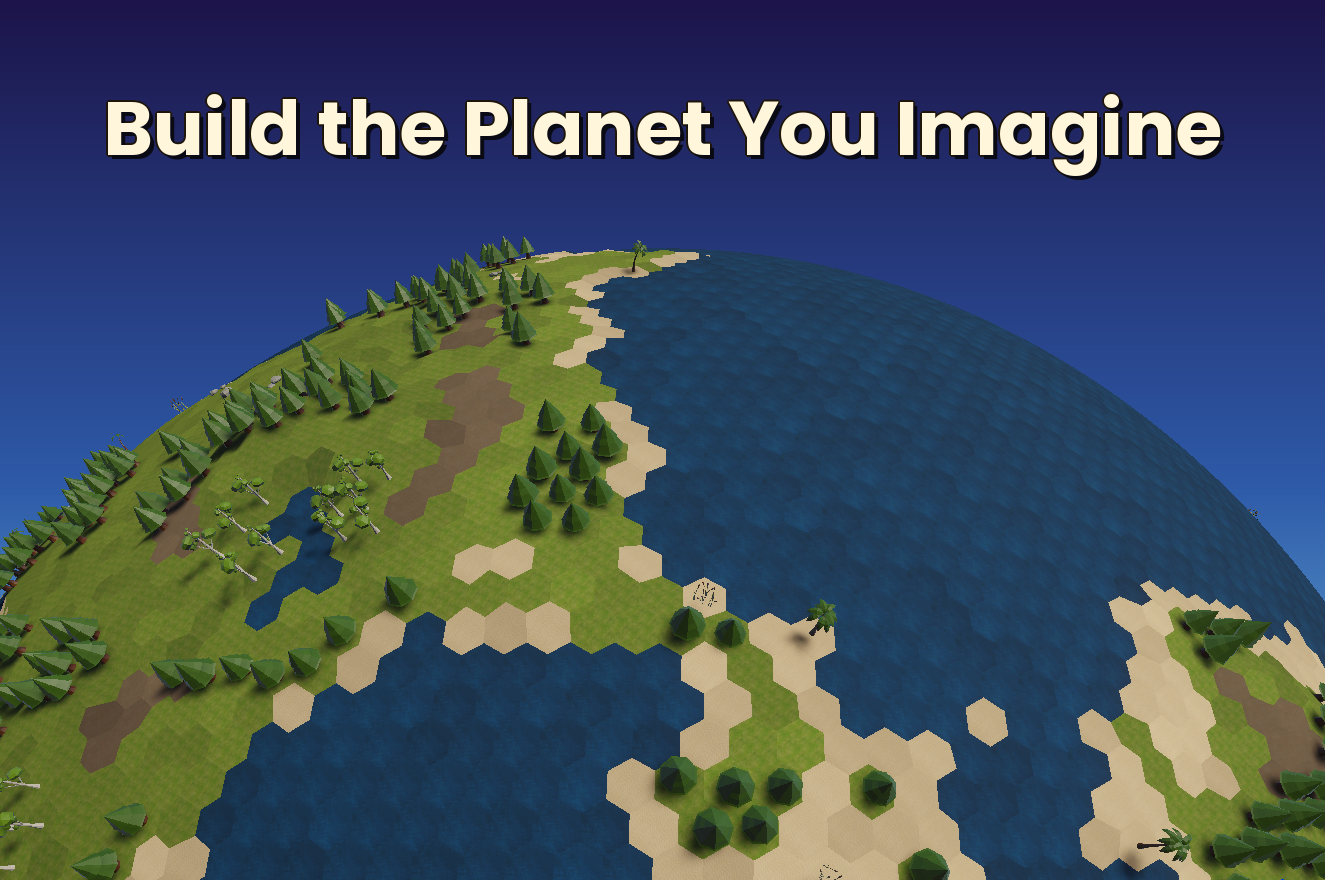
Create and paint hexagonal planets with tiles, props, rivers, and terrain deformation. A complete planetary generation system for strategy games and simulations.
Key Features
- Tileset System: Define materials, pathfinding costs, and terrain types (land, water)
- Props: Create prop palettes containing all the props you'll be using for your planet. Place props using the painter tool and choose optional randomization such as scale variation, jitter, and rotation. Each prop can have multiple prefabs assigned to it and the painter tool will randomize the variant used on generation
- Rivers: Draw rivers between tiles. If using the included pathfinding capability, you can have a movement modifier to crossing rivers
- Height Editing: Deform your planet's surface with vertex-based height displacement
- Territories: A system capable of painting territories on land to show land control
- Pathfinding: A pathfinding script is included that includes Land, Air, and Sea capabilities. Factors that can affect pathfinding costs are tile type, props, cliffs, water, rivers
- A demo scene with a few starter props and a tileset, and a runtime user interface to see them in action
- Currently supports planets up to 100,000 tiles
Technical Details
- Hexagonal Sphere Generation
- Tileset Editor
- Tile Painting
- Prop System
- River Tool
- Height Modification
- Territory System
- Pathfinding Support
- Planet Save/Load System
- Template System for quicker planet creation times
- Planets with up to 100K tiles
Getting Started Guide
Creating Your First Planet
To create a planet, you first must create a tileset in Window → Planet → Tileset Editor. There you can create new tilesets or edit existing ones. Once complete, go to your scene hierarchy and go to Create → 3D Object → Planet. This is where you will create or load planets into your scene. Frequency affects the subdivision process and controls how many tiles your planet will have. You can pick a frequency using the slider and it'll display your tile count. Once you have chosen your subdivision frequency, load your tileset and press create planet.
Now you can go to Window → Planet → Planet Painter. There you can apply your tiles from the tileset to your planet, and place props, rivers, and deform the terrain. If the editor was reloaded or a recompile has occurred, you will have to click "Regenerate Mesh" in the painter tool in order to reload the tile information.
Working with Props
Props use a Prop Palette much like tiles use a tileset. Creating a new palette can be done on the props tab of the planet painter, or optionally from your asset window with Create → Planet → Prop Palette. But first you must create your Prop Type from Create → Planet → Prop Type. Prop types, such as trees, can have multiple prefabs assigned to it which will be randomized on generation. Sizing your prefab will take some care. The size is a factor of tile size, so once set, it will be properly sized for planets of all sizes and subdivision levels.
Rivers
The River tab requires a river material to continue. Keep in mind that rivers have a pathfinding modifier which can be modified in Pathfinding.cs.
Pathfinding
Once you check "Include Pathfinding" (available on planet creation, or afterward on the Icosahedron Generator component), a Pathfinding component is added to your planet. On that component you'll find a Use Hierarchical Pathfinding toggle (HPA*) — this speeds up long-distance path searches on large planets by first routing through a simplified, zoomed-out version of the map before figuring out the exact tile-by-tile path. It's on by default and works automatically, so you generally don't need to touch it.
Editor Tip
To rotate your view on the planet, select it, press F to focus, hold alt and then left click to rotate and right click to zoom.
Prop Type Registry
If loading a planet with over 10k props, the time it takes would be significant without the use of the editor optimizations and the runtime use of the prop registry. After creating a prop, update the registry by going to Tools → Planet → Build Prop Type Registry. If you press play with props not in the registry, you may notice it works fine. However, you will get an error stating that it's working because you're using the editor fast load optimizations and that it will not work (missing props won't load) in a build version of the game. You have an option of using the Resources location for your props if you wish to bypass the use of the registry and its optimizations.
Icosphere Template Creator
To create planets with frequencies greater than 50 you must use a template. Without a template, planet load times would be long. To create a template, go to Tools → Planet → Generate Icosphere Templates. Here you can generate the data that can assist you later when creating and loading planets by dramatically reducing their load times. When creating or editing a planet's settings select Use Template. If the drop down is empty, you need to create one from the path above. Even a <50 frequency planet can take a few seconds to load and can benefit from a template being created to assist. Each template can range from a few megabytes to over 10MB.
Final Details
- PlanetLoader must always be present in your scene. If a planet already exists in the scene when you press Play, it initializes itself automatically - pathfinding, tile selection, and territories all come online with no extra setup. PlanetLoader is also your entry point for loading a planet purely from saved data at runtime - see the Planet Loader section below.
- Tile selection (clicking and hovering tiles) is handled by TileRaycaster, included on the orbit camera - see the Tile Selection section below.
- This tool does not support multiple planets in the scene.
- If you are adding mesh layers with different Z offsets from the planet surface you can find existing layers such as grid, territories, rivers, etc, by searching "Z offset" from your project solution.
Planet Architecture Guide
Internal mesh generation details (icosahedron subdivision, dual mesh construction) are documented as a comment above the IcosahedronGenerator class in IcosahedronGenerator.cs for anyone digging into the internals. Below is what you'll actually work with day-to-day.
Tile Data You'll Use
Each Tile object exposes:
id                    // Unique identifier for this tile
neighborIds           // List of adjacent tile IDs
tileTypeGuid          // The painted tile type (grass, water, etc.)
prop                  // Optional PropInstance (trees, rocks, etc.)
riverIds              // Rivers flowing along this tile's edges
The Tile class (Tile.cs) can be expanded to handle game-specific logic such as structures being built, resource generation, unit occupancy, fog of war, or any other per-tile state needed for your game.
For spawning structures on tiles, use these IcosahedronGenerator methods:
GetAverageTileSize()
// Returns typical tile edge length for scaling structure footprints

GetTileCenterPosition(tile)
// Gets the tile's deformed center with height applied

GetSurfacePositionWithinTile(tile, position)
// Projects position onto tile surface
//   - Normalizes input to angular direction (discards radial/height component)
//   - Uses math to calculate ray-plane intersection with deformed triangle geometry
//   - Returns exact 3D surface position - used for jittered prop placement

SampleNormalAtUnitDir(unitDir)
// Gets interpolated surface normal for rotation
Planet Loader
PlanetLoader is a singleton that must always be present in your scene. If a planet already exists in the scene when Play begins, it initializes itself automatically - no code required. Its runtime API is how you load a planet purely from a saved PlanetData asset, e.g. loading a save file or starting a new game with no planet pre-placed in the scene.
Loading and Unloading
// Load a planet from saved data
PlanetLoader.Instance.LoadPlanetFromData(planetData);

// Unload the current planet (safe to call right before loading a new one)
PlanetLoader.Instance.UnloadPlanet();

// Check whether a planet is currently loaded
bool loaded = PlanetLoader.Instance.HasPlanet();
Reacting to Load/Unload
Subscribe early (e.g. in Awake) so you don't miss a load that happens before your Start():
PlanetLoader.Instance.PlanetLoaded += OnPlanetLoaded;
PlanetLoader.Instance.PlanetUnloaded += OnPlanetUnloaded;

void OnPlanetLoaded(GameObject planet)
{
    // Grab whatever components you need off the planet, e.g.:
    TilePathfinder pathfinder = planet.GetComponent<TilePathfinder>();
    Territories territories = planet.GetComponent<Territories>();
}

void OnPlanetUnloaded()
{
    // Clear out any references/UI tied to the old planet
}
Accessing the Current Planet
IcosahedronGenerator generator = PlanetLoader.Instance.GetGenerator();
GameObject planet = PlanetLoader.Instance.GetPlanetGameObject();
TilePathfinder pathfinder = PlanetLoader.Instance.GetPathfinder();
Tile Selection
TileRaycaster is included on the orbit camera. It turns mouse clicks and hovers into Tile references, which is how you feed a player's click into pathfinding or territory calls.
Responding to Clicks and Hover
TileRaycaster raycaster = Camera.main.GetComponent<TileRaycaster>();

raycaster.TileSelected += OnTileSelected;
raycaster.TileHoverChanged += OnTileHoverChanged;
raycaster.TileHoverLost += OnTileHoverLost;

void OnTileSelected(Tile tile)
{
    // e.g. set a pathfinding start/end tile, add/remove it from a territory
}

void OnTileHoverChanged(Tile previousTile, Tile hoveredTile)
{
    // e.g. preview a path or highlight a tile before it's clicked
}

void OnTileHoverLost()
{
    // e.g. hide a hover preview
}
Querying Directly
Tile currentTile = raycaster.GetCurrentTile();
GameObject currentPlanet = raycaster.GetCurrentPlanet();
Pathfinding System
Pathfinding.cs - Core A* Algorithm
- Non-MonoBehaviour pathfinding logic class
- Implements A* algorithm for optimal paths between tiles
- Calculates movement costs based on terrain type, props, rivers, and slopes (40° max)
- Handles agent-type restrictions (Land/Water/Air)
- River crossings only add cost where a river actually crosses the shared edge between two tiles, not just when tiles happen to touch the same river
TilePathfinder.cs - MonoBehaviour Wrapper
- Component attached to planet GameObject
- Creates and manages Pathfinding instance
- Configurable max search iterations (performance safety)
- Long-distance Land/Water queries are automatically accelerated with hierarchical pathfinding, keeping path searches fast even on planets with tens of thousands of tiles
Core API:
FindPath(startTile, endTile)                // Basic path
FindPath(startTileId, endTileId)            // Path by ID
FindPath(tile, tile, AgentType)             // Agent-specific pathfinding
IsTilePassable(tile, AgentType)             // Check walkability
GetNeighbors(tile)                          // Get adjacent tiles
PathAgent.cs - Movement Execution
- Component that moves GameObject along calculated path
- Follows deformed terrain surface using triangle interpolation
- Auto-enables/disables Update() when moving/stopped
- Fires events at milestones
Core API:
SetPath(path, planet)    // Start moving along path
TilesPerSecond           // Speed control (auto-scales with planet size)
OnTileEntered            // Event fired when entering each tile
OnPathComplete           // Event fired when reaching destination
Territory System
Creating Territories
Auto-assign materials (random cycling):
Territory t = territories.CreateTerritory(tiles);Automatically assigns materials from the pool using random selection. Tiles parameter can be null for dynamic addition later.
Custom materials:
Material borderMat = /* your material */;
Material fillMat = /* your material */;
Territory t = territories.CreateTerritory(tiles, borderMat, fillMat);
Managing Territory Tiles
Add tiles incrementally:
territory.AddTile(tileId);
territories.RefreshTerritory(territory);
Remove tiles incrementally:
territory.RemoveTile(tileId);
territories.RefreshTerritory(territory);
Replace all tiles at once:
territories.SetTerritoryTiles(territoryId, newTileList);Remove tile and update lookup:
territories.RemoveTileFromTerritory(territory, tileId);Querying Territories
// Find which territory contains a tile
Territory t = territories.GetTerritoryForTile(tileId);  // Returns Territory or null
int id = territories.GetTerritoryIdForTile(tileId);     // Returns ID or -1

// Get territory by ID
Territory t = territories.GetTerritory(territoryId);

// Get all territories
List<Territory> allTerritories = territories.GetAllTerritories();

// Check if territory contains tile
bool contains = territory.ContainsTile(tileId);
Visual Control & Cleanup
// Show/hide territory
territory.Show();
territory.Hide();

// Destroy single territory
territories.DestroyTerritory(territory);

// Clear all territories
territories.ClearAllTerritories();
Setup Requirements
Place material pairs in Resources/Materials/ folder with sequential naming (gap-free):
- TerritoryBorder + TerritoryFill (required - first pair)
- TerritoryBorder1 + TerritoryFill1
- TerritoryBorder2 + TerritoryFill2
- etc.
Works with any number of material pairs (minimum 1 required). System stops loading at first missing pair.